
Live Editing
Neko provides a seamless live editing experience when running your site in watch mode. This allows you to edit content directly from your browser without needing to switch context between an editor and the documentation preview.
Getting Started
To enable live editing, simply run the Neko CLI with the watch command:
neko watch --input docs/
When you navigate to your locally hosted site, Neko injects an embedded Monaco Editor instance into the page.
Editing Pages and Folders
There are two primary ways to access the editor:
- Global Editor Shortcut: You can press
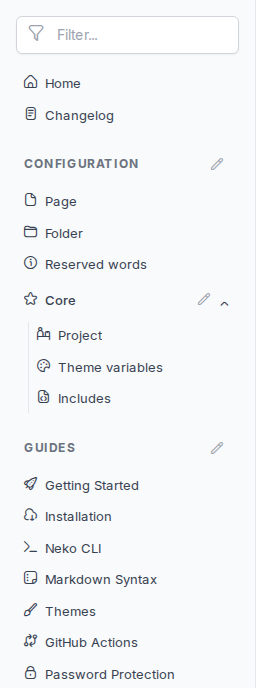
Ctrl + I(orCmd + Ion macOS) anywhere on a page to open the Monaco Editor with the markdown content of the current page. - Sidebar Pencil Icon: When hovering over folder items in the sidebar, a pencil icon will appear. Clicking this icon opens the editor specifically targeted at the folder's configuration file (
index.yml), allowing you to quickly modify metadata such asorder,title, oricon.
Component Auto-Complete
To help you remember and quickly insert Neko's extensive custom components, the built-in editor supports auto-complete snippets.
While editing a markdown file, type the prefix neko- to trigger a dropdown containing templates for all supported custom syntax blocks, such as tabs, alerts, callouts, cards, and more.
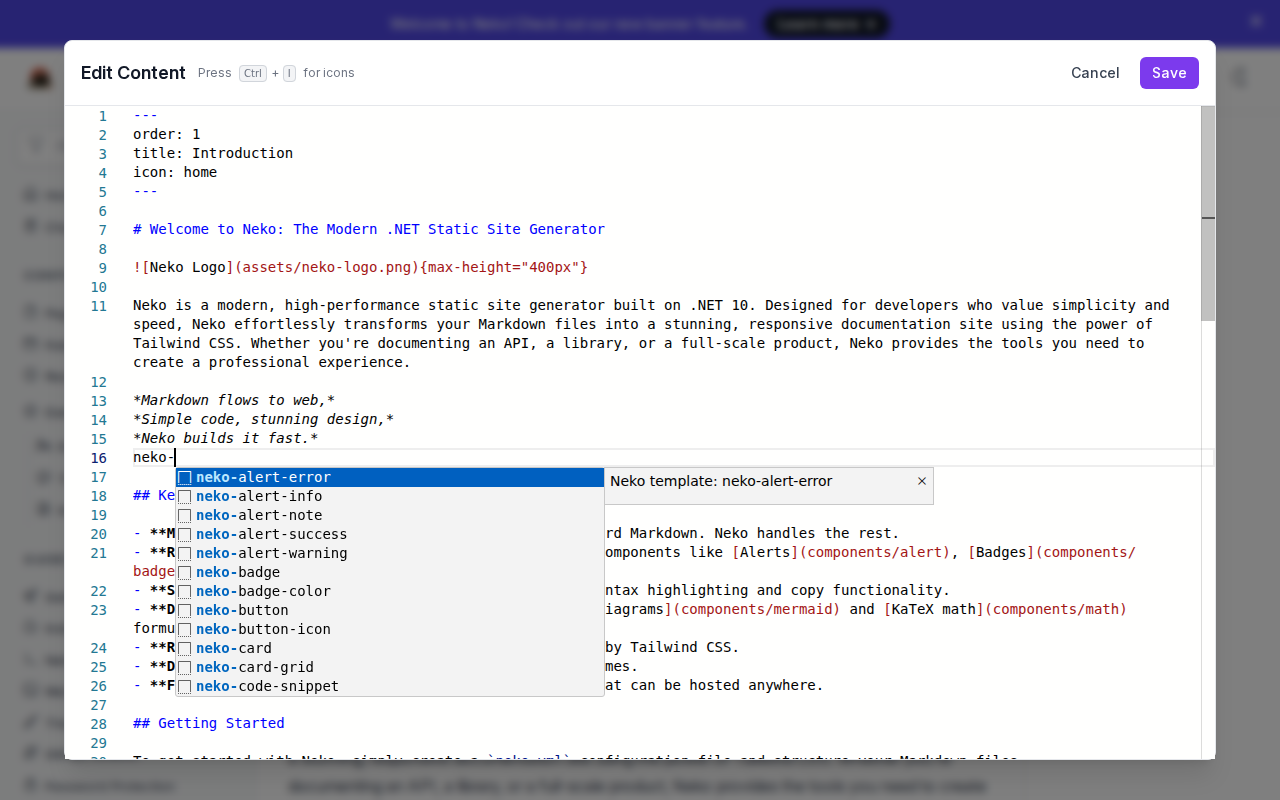
This ensures you can always access the right snippet structure without leaving the browser or consulting external documentation.
Live preview only (disable the editor)
Sometimes you want the watch server's live-reload on localhost without any of
the editing chrome — for example, to preview exactly what a release build ships,
or to demo the site without exposing the edit and reorder controls. Pass
--live (alias --no-editor) to neko watch:
neko watch --input docs/ --live
In this mode Neko still rebuilds and refreshes the browser on every file change,
but it omits the in-browser editor entirely: the header edit button, the sidebar
pencil icons, the drag-to-reorder handles, and the Monaco editor modal are all
left out, just as they are in a neko build output.
Disabling password protection while watching
Password-protected pages normally show the
same lock-screen prompt during local authoring as they do in production —
useful for verifying the feature, but tedious if you're just iterating on
content and keep hitting the prompt on every reload. Pass --no-password
(alias --disable-passwords) to neko watch to skip it for the lifetime of
the watch session:
neko watch --input docs/ --no-password
This ignores both the site-wide password: key in neko.yml and any
page-level password: frontmatter, rendering every page in plaintext. It has
no effect on neko build — a production build always respects passwords
regardless of how the site was previewed locally.